Assigned shifts
Your assigned shifts are the definitive record of when you are scheduled. Review them after a roster is published or changed.
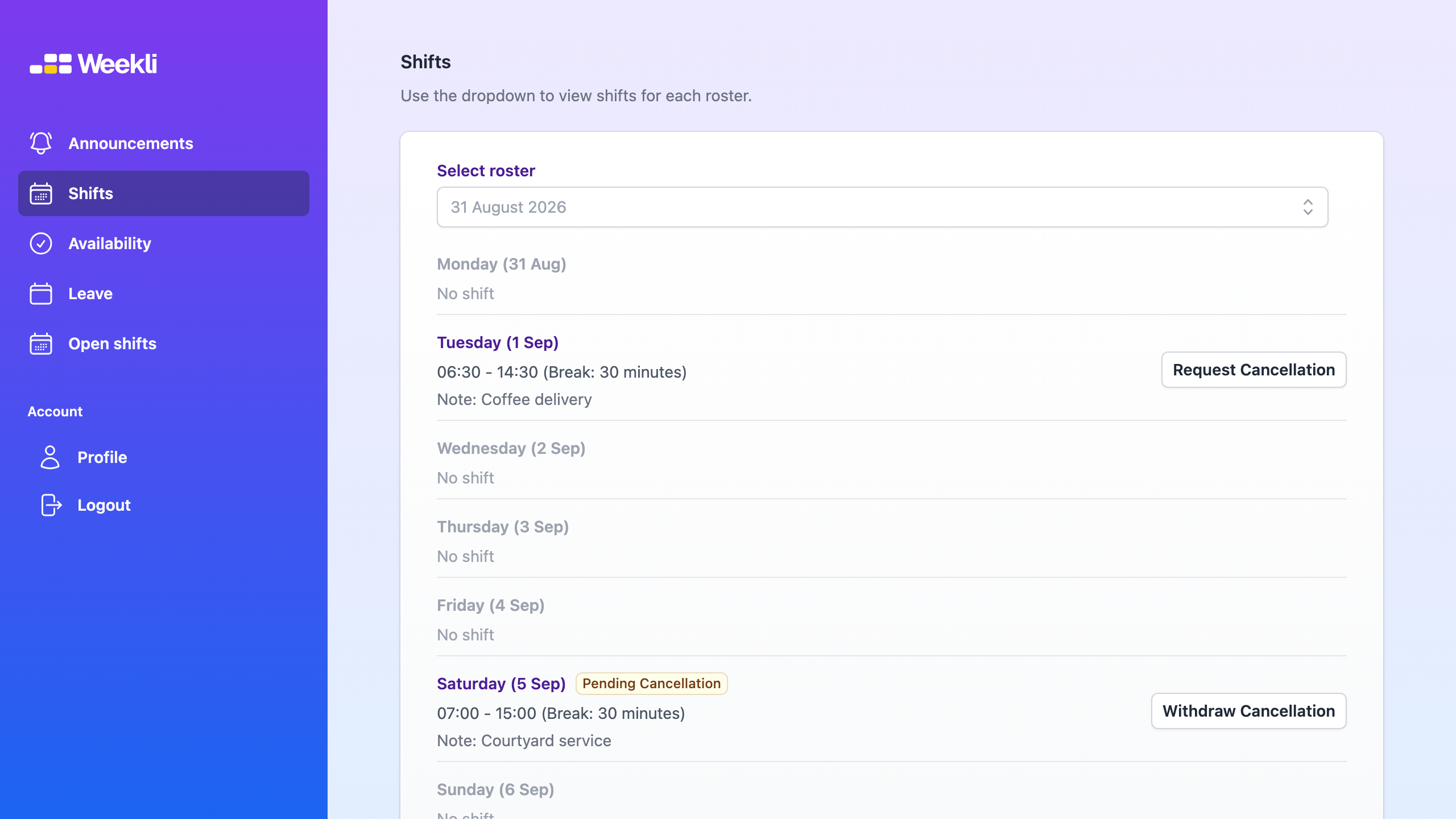
Assigned shifts in the Weekli demo. Select the image to open it full size.
Before you begin
Section titled “Before you begin”You need a published roster with shifts assigned to you. The Request Cancellation control appears only when your organisation allows shift-cancellation requests.
Check your shifts
Section titled “Check your shifts”- Select Shifts in the Weekli navigation.
- Use Select roster to choose the roster period you want to review.
- Check each day’s start time, finish time, break and shift note. Days without an assignment show No shift.
- If your role permits it, select View full to see the complete published roster. Select View my shifts to return to your assignments.
Request a shift cancellation
Section titled “Request a shift cancellation”- Find the assigned shift you cannot work.
- Select Request Cancellation.
- Check the shift for the Pending Cancellation status.
- If the manager has not reviewed the request and you can work the shift after all, select Withdraw Cancellation.
Expected result
Section titled “Expected result”Your selected roster displays your current assigned shifts. A cancellation request remains pending until a manager reviews it and does not remove the shift by itself.
Continue to treat the shift as assigned until the roster changes. A denied request is shown as Cancellation denied.